
AI IN PRACTICE 2026-11-20 5 MIN READ
Connect ChatGPT or Claude to your case file in 2 minutes via MCP
Legalnaut's MCP server plugs Claude, ChatGPT and other assistants into your matters, with the rights your role gives you.
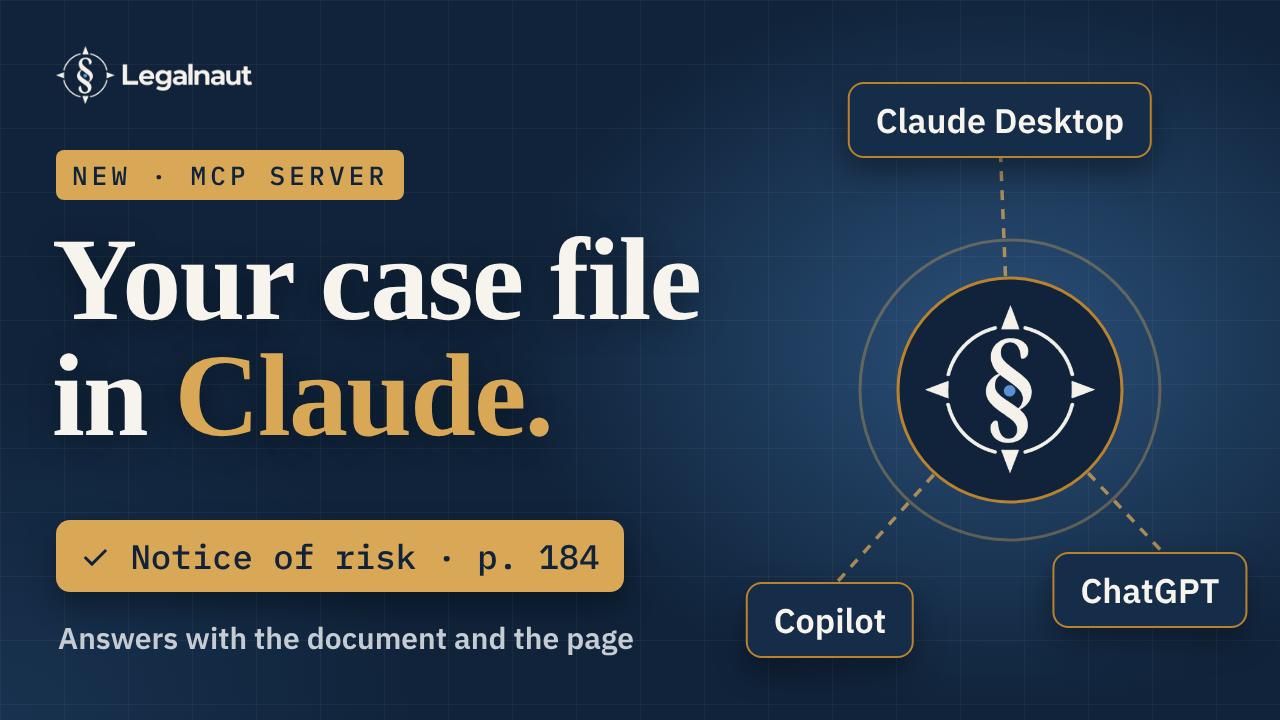
Stop pasting documents into a chat. Connect the assistant you already use to your Legalnaut matter and it reads the whole case file, then answers with the document and the page.
You paste a witness statement into ChatGPT, then an email chain, then the defence. Halfway through, the chat forgets the first document. The answer it gives you names no page, so you go back to the bundle to check it, which is the work you hoped to skip.
There is a shorter way. Legalnaut now has an MCP server, a connector that plugs Claude, ChatGPT, Cursor, VS Code and other AI assistants straight into the matters you hold in Legalnaut. You keep asking in the assistant you already use. It reads from the whole case file and answers with the document and the page.
What changes when the assistant reads the file
Pasting gives the assistant whatever fits in one conversation. A connected assistant works the other way round. It searches the matter, opens the documents it needs and reads them in full, page by page.
That gives you five things:
- Answers you can check. Every factual sentence names the document and the page. Open that page in Legalnaut and the passage is there.
- The whole matter, not only what you pasted. Documents, mail threads, scans and transcripts, the timeline, people and what they said, contradictions with their review status, sums of money, dossiers, proof charts and deadlines.
- Two minutes to set up. You paste one address, sign in to Legalnaut and choose what the assistant may do.
- No new access. The assistant gets the rights your role gives you in each matter and nothing more. Documents marked sensitive or hidden from you stay out of its reach. Nothing can be deleted, and every call goes into the matter's audit log.
- No extra cost. The connector is included in every plan, the trial too. Asking questions uses no pages; pages are counted only when a document enters the case file.
Set it up in Claude
- In Claude (claude.ai or the desktop app), open Customize → Connectors and choose Add custom connector.
- Paste
https://legalnaut.com/mcpas the address. - Sign in to Legalnaut when Claude asks, and approve.
A connector added on claude.ai also works in the Claude desktop and mobile apps. On Team and Enterprise plans an owner may have to add it for the organisation first.
Set it up in ChatGPT
- In ChatGPT on the web, open Settings → Apps & Connectors. If custom connectors are off, switch on developer mode under Advanced settings. On business plans an admin may have to allow it.
- Add a connector with the address
https://legalnaut.com/mcp. - Sign in to Legalnaut when ChatGPT asks, and approve.
ChatGPT signs in with OAuth only, so you never handle a key.
Cursor, VS Code, Windsurf and the rest
Settings → AI assistants in Legalnaut has one-click buttons for Cursor and VS Code, and the setup guide covers Claude Code, Windsurf, Zed, Gemini CLI, Microsoft Copilot Studio, Mistral Le Chat, Perplexity and any client that speaks MCP. They all use the same address. A client without OAuth can use a personal key from the same settings page.
You decide what it may change
When you approve the connection, Legalnaut asks one question: read only, or read and change. Read only is preselected.
Read only lets the assistant search and read the case file: documents, chronology, people, claims, contradictions, proof charts and deadlines.
Read and change also lets it add documents, file items into dossiers with your reading of them, leave notes for the team and confirm or dismiss a contradiction, and only when you ask for it in the conversation. It can never delete anything, and it never touches settings, the team or billing.
If you run a firm, you hold a switch as well. The owner can turn AI assistants off for every matter of the organisation under Settings → Organisation, and see and disconnect every connection anyone made.
Eight workflows ready in the prompt menu
The connector also brings eight ready-made workflows to the assistant's prompt menu, so you need not write prompts from scratch:
| Workflow | What you get |
|---|---|
| Summarise the matter | The parties, the key events in order, where the accounts disagree, what is missing and what is due next |
| Chronology of a topic | Everything the file says about one topic or person, in date order, each line with its page |
| Prepare a witness examination | What the witness said, what others said about them, where the record contradicts them, and an examination outline |
| Review new contradictions | Each suggested contradiction with both quotations; you decide and the assistant records your verdict |
| What the proof chart is missing | The issues with nothing behind them yet, and where in the file the evidence might be |
| Deadlines in the next 30 days | What is due, what each deadline requires, and the document it comes from |
| What is new this week | The documents that came in, what they say, and what needs your attention first |
| Add documents from this chat | The email or file you shared in the conversation goes into the matter and is analysed like any import |
Illustration, not a real matter: you ask "When did the defendant first hear about the defect?" The assistant searches the mail, reads four messages from the site manager and answers "On 14 March 2022, in an email to the project director (Email re: cracks in slab, p. 1)". A contradiction it mentions comes marked as a suggestion until a lawyer confirms it.
One thing the connector does not change
Your assistant's provider still sees what its tools return. When you ask Claude or ChatGPT about a matter, the passages it reads go to Anthropic or OpenAI under the terms of your own account with them. Legalnaut keeps the file, the rights and the audit log; the conversation lives in your assistant. If your bar's rules or your client's instructions limit which AI providers may see client material, settle that first. We set out the two duties that still apply in Should you upload a client's case file to ChatGPT?, and the privacy policy describes connected assistants in its sub-processor section.
Connect your assistant today
Already a customer? Open Settings → AI assistants, pick the assistant you use and follow three steps. New to Legalnaut? Create your account, import a matter and connect your assistant. No card needed. Everything else, from every tool to troubleshooting, is in the MCP setup guide, and the overview lives on the AI assistants page.
The Legalnaut assistant searches and reads your file before it answers, and every answer cites the page you can check. Ask the demo case a question, no sign-up needed, or start the 7-day trial on your own file.